
Difference between revisions of "Adjutant End User Update Tool"
From Adjutant Wiki
| Line 1: | Line 1: | ||
__NOTOC__ | __NOTOC__ | ||
| + | |||
==General Information== | ==General Information== | ||
| − | '''Default Menu Location''': | + | '''Default Menu Location''': Transaction > System > End User Update Tool |
| + | |||
| + | '''Screen Name''': UPDATE | ||
| + | |||
| + | '''Function''': The Adjutant End User Update Tool updates your Adjutant installation to the latest available version. New versions contain bug fixes, enhancements, customizations, and new developments. | ||
| + | |||
| + | [[File:End_User_Update_Tool_Screen.png]] | ||
| + | |||
| + | |||
| + | ==Common Uses== | ||
| + | |||
| + | * '''Check for an Available Update''' - Compare your installed version with the latest available version. | ||
| + | * '''Download and Install an Update''' - Download the update package and open the Adjutant Update Processor. | ||
| + | * '''Process an Update from Local Files''' - Use installation files supplied by ABIS when the server cannot complete the FTP download. | ||
| + | |||
| + | |||
| + | ==Before You Begin== | ||
| + | |||
| + | * Confirm that the '''End User Update Tool''' menu option is available. | ||
| + | * Leave '''Beta''' checked unless instructed otherwise. This is the documented default and the correct setting for most customers. | ||
| + | * If using '''Process Local File (Skip FTP)''', obtain the current installation package files from ABIS and place them in the server's Adjutant folder before starting the local-file procedure. | ||
| + | |||
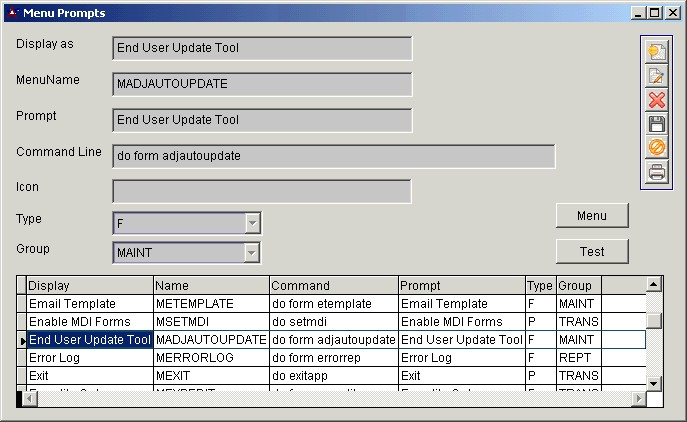
| + | If the menu option is missing, it can be added in the '''Menu Prompts''' screen using the screen name '''update'''. See the [http://abiscorp.com/adjwiki/GetFile.aspx?File=System%20Maintenance%5Cupdatemenu.jpg example menu prompt]. | ||
| + | |||
| + | |||
| + | ==Fields / Options== | ||
| − | ''' | + | {| class="wikitable" |
| + | ! Field / Option | ||
| + | ! Description | ||
| + | ! When to Use | ||
| + | |- | ||
| + | | '''Beta''' | ||
| + | | Should be checked by default. This is the correct setting for most customers. | ||
| + | | Leave checked unless instructed to change it. | ||
| + | |- | ||
| + | | '''Process Local File (Skip FTP)''' | ||
| + | | Uses installation package files already placed in the server's Adjutant folder. | ||
| + | | Use when the server cannot connect to the ABIS FTP server or the transfer is too slow and times out. | ||
| + | |- | ||
| + | | '''Passive FTP''' | ||
| + | | Uses an alternate FTP transfer method that may resolve connection problems caused by port blocking policies. | ||
| + | | Use when the server has difficulty transferring files through the standard FTP connection. | ||
| + | |- | ||
| + | | '''Re-Connect''' | ||
| + | | Connects to the update FTP server. | ||
| + | | Use at the beginning of the standard update procedure. | ||
| + | |- | ||
| + | | '''Check For Update''' | ||
| + | | Checks for an available update and displays version information. | ||
| + | | Use to determine whether an update is available. | ||
| + | |- | ||
| + | | '''Download and Install Full Update''' | ||
| + | | Downloads the new version to the Adjutant folder and opens the Adjutant Update Processor. | ||
| + | | Use when an update is available and you are ready to install it. | ||
| + | |- | ||
| + | | '''Disconnect and Exit''' | ||
| + | | Disconnects and closes the update tool. | ||
| + | | Use after completing the update procedure. | ||
| + | |} | ||
| − | |||
| − | + | ==How to Use== | |
| + | ===Check for and Install an Update=== | ||
| − | + | # Open '''Transaction > System > End User Update Tool'''. | |
| − | + | # Click '''Re-Connect''' and wait for '''Connected to Update FTP Server'''. | |
| − | ''' | + | # Click '''Check For Update'''. |
| + | #* If an update is available, the screen displays your current version and the latest available version. | ||
| + | #* If no update is available, the screen displays '''Running version is current version.''' No installation is needed. | ||
| + | # If an update is available and you wish to install it, click '''Download and Install Full Update'''. | ||
| + | #* The new version downloads to your Adjutant folder, and the [https://img.skitch.com/20120425-kg2gkdep8xnyeeau3muej776w8.jpg Adjutant Update Processor] window opens. | ||
| + | # Click '''Install''' in the Adjutant Update Processor. | ||
| + | # Click '''Yes''' when prompted to update the Help Database. | ||
| + | # Click '''Disconnect and Exit'''. | ||
| + | # Log out of Adjutant and log back in to run the new version. | ||
| − | + | ===Process an Update from Local Files=== | |
| − | + | Use this procedure when the FTP download cannot be completed. | |
| − | ''' | + | # Obtain the current version installation package files from ABIS personnel. |
| + | #* These files must be provided by ABIS personnel with access to the ABIS-only <code>ADJftp\AdjCurrentVersionBeta</code> FTP resource folder. | ||
| + | # Transfer the files to the customer's server and place them in the '''Adjutant folder'''. | ||
| + | # Open the '''End User Update Tool''' and check '''Process Local File (Skip FTP)'''. | ||
| + | # Continue the standard update procedure above beginning with '''Check For Update'''. | ||
| − | |||
| − | + | ==Expected Results== | |
| − | ''' | + | * After connecting successfully, the screen displays '''Connected to Update FTP Server'''. |
| + | * Checking for an update displays the current and available versions, or the message '''Running version is current version.''' | ||
| + | * When an update is downloaded, the '''Adjutant Update Processor''' opens. | ||
| + | * After installation, logging out and logging back in runs the updated version. | ||
| − | + | To check the installed version afterward, use '''Check For Update''' to review the current version reported by the tool. | |
| − | |||
| − | + | ==Common Issues== | |
| − | + | ===The Update Tool Is Missing from the Menu=== | |
| + | Add the menu option in '''Menu Prompts''' using the screen name '''update'''. Refer to the example menu prompt linked under '''Before You Begin'''. | ||
| − | === | + | ===The FTP Transfer Will Not Complete=== |
| − | * The ' | + | * If port blocking policies prevent the transfer, try '''Passive FTP'''. |
| + | * The '''FTPPASSIVE''' setup option can be enabled to make Passive FTP the default for customers that require it. | ||
| + | * If the server cannot connect or transfers repeatedly time out, use '''Process Local File (Skip FTP)''' with the current installation package files supplied by ABIS. | ||
| − | + | ===No Update Is Available=== | |
| − | + | The message '''Running version is current version.''' indicates that the tool has not found a newer available version. No installation is needed. | |
| − | |||
| − | + | ==Related Topics== | |
| − | + | * [http://www.abiscorp.com/adjwiki/AllPages.aspx?Cat=Release%20Notes Adjutant Release Notes] | |
| + | * [http://abiscorp.com/signup/release.html Sign up for notifications when new versions are available] | ||
| − | [[Category: System Manager]] | + | [[Category:System Manager]] |
Latest revision as of 12:07, 30 September 2026
General Information
Default Menu Location: Transaction > System > End User Update Tool
Screen Name: UPDATE
Function: The Adjutant End User Update Tool updates your Adjutant installation to the latest available version. New versions contain bug fixes, enhancements, customizations, and new developments.

Common Uses
- Check for an Available Update - Compare your installed version with the latest available version.
- Download and Install an Update - Download the update package and open the Adjutant Update Processor.
- Process an Update from Local Files - Use installation files supplied by ABIS when the server cannot complete the FTP download.
Before You Begin
- Confirm that the End User Update Tool menu option is available.
- Leave Beta checked unless instructed otherwise. This is the documented default and the correct setting for most customers.
- If using Process Local File (Skip FTP), obtain the current installation package files from ABIS and place them in the server's Adjutant folder before starting the local-file procedure.
If the menu option is missing, it can be added in the Menu Prompts screen using the screen name update. See the example menu prompt.
Fields / Options
| Field / Option | Description | When to Use |
|---|---|---|
| Beta | Should be checked by default. This is the correct setting for most customers. | Leave checked unless instructed to change it. |
| Process Local File (Skip FTP) | Uses installation package files already placed in the server's Adjutant folder. | Use when the server cannot connect to the ABIS FTP server or the transfer is too slow and times out. |
| Passive FTP | Uses an alternate FTP transfer method that may resolve connection problems caused by port blocking policies. | Use when the server has difficulty transferring files through the standard FTP connection. |
| Re-Connect | Connects to the update FTP server. | Use at the beginning of the standard update procedure. |
| Check For Update | Checks for an available update and displays version information. | Use to determine whether an update is available. |
| Download and Install Full Update | Downloads the new version to the Adjutant folder and opens the Adjutant Update Processor. | Use when an update is available and you are ready to install it. |
| Disconnect and Exit | Disconnects and closes the update tool. | Use after completing the update procedure. |
How to Use
Check for and Install an Update
- Open Transaction > System > End User Update Tool.
- Click Re-Connect and wait for Connected to Update FTP Server.
- Click Check For Update.
- If an update is available, the screen displays your current version and the latest available version.
- If no update is available, the screen displays Running version is current version. No installation is needed.
- If an update is available and you wish to install it, click Download and Install Full Update.
- The new version downloads to your Adjutant folder, and the Adjutant Update Processor window opens.
- Click Install in the Adjutant Update Processor.
- Click Yes when prompted to update the Help Database.
- Click Disconnect and Exit.
- Log out of Adjutant and log back in to run the new version.

Process an Update from Local Files
Use this procedure when the FTP download cannot be completed.
- Obtain the current version installation package files from ABIS personnel.
- These files must be provided by ABIS personnel with access to the ABIS-only
ADJftp\AdjCurrentVersionBetaFTP resource folder.
- These files must be provided by ABIS personnel with access to the ABIS-only
- Transfer the files to the customer's server and place them in the Adjutant folder.
- Open the End User Update Tool and check Process Local File (Skip FTP).
- Continue the standard update procedure above beginning with Check For Update.
Expected Results
- After connecting successfully, the screen displays Connected to Update FTP Server.
- Checking for an update displays the current and available versions, or the message Running version is current version.
- When an update is downloaded, the Adjutant Update Processor opens.
- After installation, logging out and logging back in runs the updated version.
To check the installed version afterward, use Check For Update to review the current version reported by the tool.
Common Issues
The Update Tool Is Missing from the Menu
Add the menu option in Menu Prompts using the screen name update. Refer to the example menu prompt linked under Before You Begin.
The FTP Transfer Will Not Complete
- If port blocking policies prevent the transfer, try Passive FTP.
- The FTPPASSIVE setup option can be enabled to make Passive FTP the default for customers that require it.
- If the server cannot connect or transfers repeatedly time out, use Process Local File (Skip FTP) with the current installation package files supplied by ABIS.
No Update Is Available
The message Running version is current version. indicates that the tool has not found a newer available version. No installation is needed.