General Information
Default Menu Location Transaction >> Address Book >> Record Finder
Screen Name JUMP2
Search
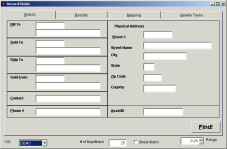 Record Finder- Search Screen |
The
Search screen is used to find organizations and view nearby tasks.
- Enter any of the known information into the corresponding field and click on Find button
- This will automatically switch you over to the Results tab and display the matching search results
Results
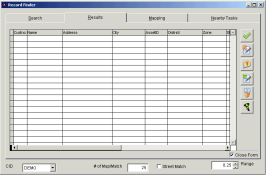 Record Finder- Results Screen |
- To schedule a new task for the selected organization, click the New Task icon on the right side of the screen. You may also double-click the organization in the results grid; this will display the Task Entry Screen.
- To create a new Sales Order for the organization selected, click the Sales Order button
- To create a new Customer Quote for the organization selected, click the Customer Inquiry button
- To create a new Purchase Order for the organization selected, click the PO button
- To create a new Vendor Inquiry for the organization selected, click the Vendor Inquiry button
- Place a check in the Close Form box to automatically close this window when opening a new form
- To see a graphical map of all active tasks for the selected organization, click the Mapping tab
- To see a text list of all active tasks for the selected organization, click the Nearby Tasks tab
Mapping
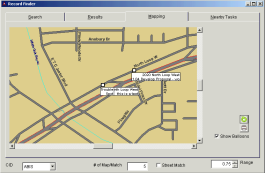 Record Finder- Mapping Screen |
- Mapping tab is used to graphically map all of the open tasks/work orders, within a given range for the selected organization.
- The Range field
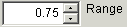 at the bottom right-hand side of the screen is used to change the display area shown on the map; the units are in square miles.
- To change the area shown on the map, click the Refresh button
- To print the map, click the Print button
Nearby Tasks
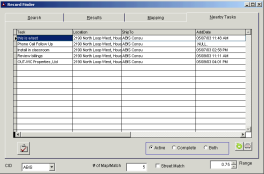 Record Finder- Nearby Screen |
- Nearby Tasks tab is used to textually show all of the open tasks, within a given range, for the selected organization. This screen works in the same way as the Mapping Tab, but shows the information in a spreadsheet format, rather than a visual map.
- To open a task, double click into the task (screen is drill-down enabled). This will take you to the Task Entry Screen.
- To see incomplete tasks, click the Active radio button
- To see completed tasks, click the Complete radio button
- To print the list, click Print
